css Beginner
Place HTML Elements Absolutely with CSS
Interactive editor — edit code and see live results
Open in Editor
Combination of positions
.container {
  position: relative;
  margin: 0 auto;
}

.title {
  position: absolute;
  top: 5%;
  left: 50%;
  transform: translate(-50%);
  margin: 0;
  color: #fff;
}

.catImage {
  width: 100%;
  height: auto;
}- Position
relativeis used on.containerclass to place content relatively to it. - Position
absoluteis used on.titleclass withtop,left, andtransformproperties. - More about centering on CSS-TRICKS.
- More about positions in CSS on w3schools.
<div class="container">
  <img src="https://cataas.com/cat/cute" class="catImage" />
  <h2 class="title">I'm cute</h2>
</div>- First, we wrap everything with
div class="container". - Then, we render our cute cat image with
<img src.../>. - Lastly,
h2has a.titleclass which is positioned absolutely. - The above
h2element will look for the closest container that has arelativeorabsoluteposition which is ourdivwith.containerclass and position absolutely to it.
Summary
- Understanding CSS positions is a crucial aspect to succeed in creating application layouts.
- Transforms can be useful for centering content vertically or horizontally.
- Never skip your CSS day as it’ll hit you earlier than you think.
Try this in our interactive code editor
Practice hands-on with our built-in code sandbox.
Open Code Editor
Adrian Bigaj 

Creator of BigDevSoon
Full-stack developer and educator passionate about helping developers build real-world skills through hands-on projects. Creator of BigDevSoon, a vibe coding platform with 21 projects, 100 coding challenges, 40+ practice problems, and Merlin AI.
Related Pills

css Beginner
Adjust box sizing in CSS
Adjust box-sizing property to include padding and border to actual width or height. Simplifies overhead of the box model.

css Beginner
CSS Animated Accordion
Smooth open/close animations on native details elements using interpolate-size — no JavaScript height measurement.
css Beginner
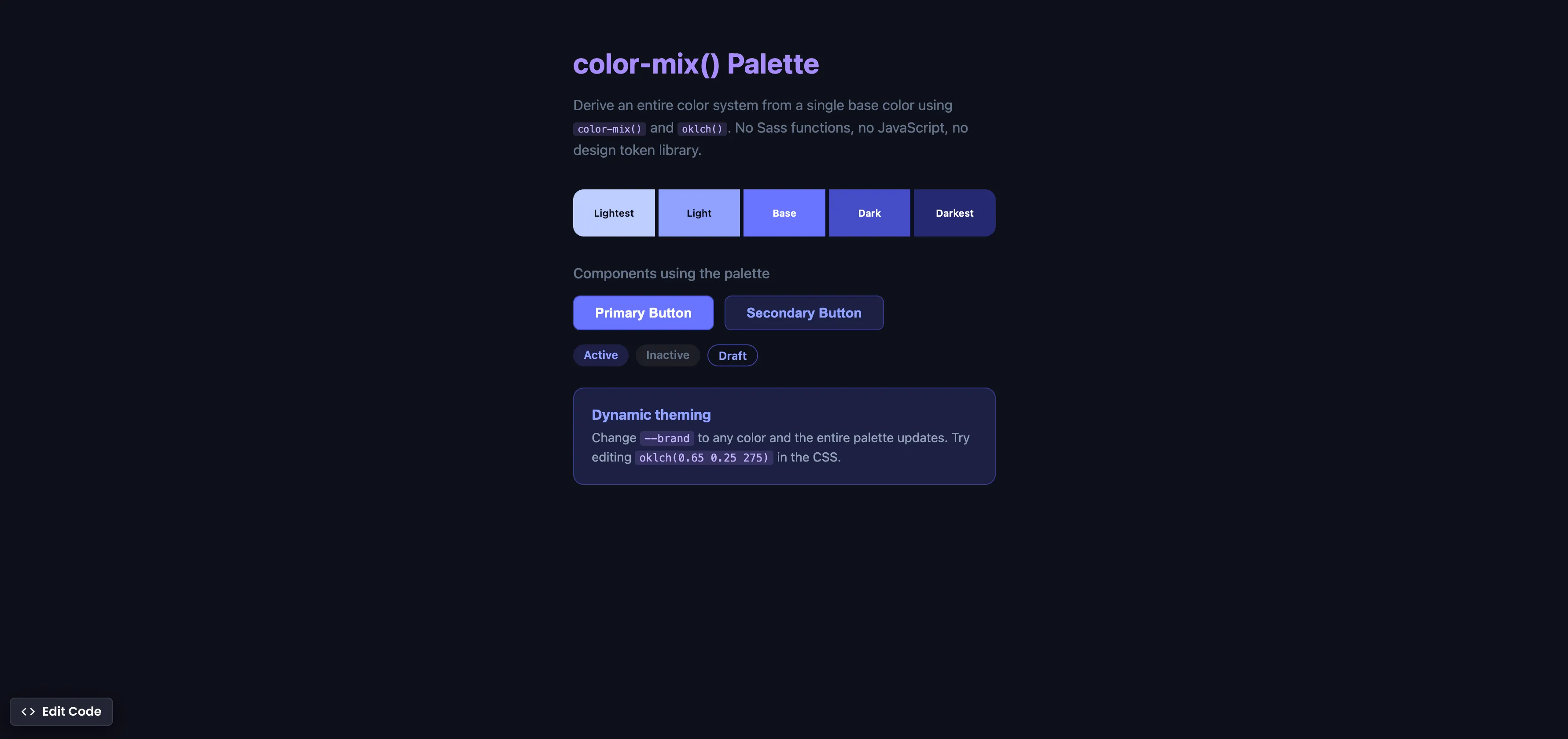
CSS color-mix() Palette
Derive an entire color system from one base color using color-mix() and oklch() — no Sass functions, no JavaScript.