Vibe Coding for Beginners: What It Is, How It Works, and How to Start

Introduction
You have probably heard the term “vibe coding” thrown around on Twitter, YouTube, and dev blogs. Maybe you have seen someone build an entire app in 20 minutes using AI. Maybe you tried it yourself and got a mess of broken code. Either way, you are here because you want to understand what vibe coding actually is and how to do it properly.
This is not a hype piece. Vibe coding is real, it is useful, and it has real limitations. In this tutorial, I will walk you through the concept, the workflow, and practical examples using BigDevSoon’s Merlin AI so you can start vibe coding on real projects today. I have been doing this daily while building BigDevSoon — you can read the full story in How I Vibe Coded My Vibe Coding Platform.
What Is Vibe Coding?
Vibe coding is a development workflow where you describe what you want to build in natural language, and an AI assistant generates the code for you. Instead of writing every line yourself, you focus on the intent — the “vibe” — and the AI handles the implementation.
The term was coined by Andrej Karpathy in early 2025 when he tweeted about “fully giving in to the vibes” while coding with AI. The idea is simple: you tell the AI what you want, it writes the code, you review it, and you iterate. You are still the developer. You still make the decisions. But the mechanical act of typing code shifts to the AI.
Think of it like this. Traditional coding is writing an essay word by word. Vibe coding is dictating to a skilled writer who knows your style, then editing the draft. You still need to know what good writing looks like — you just produce it differently.
This is not “no-code.” You are working with real code, real frameworks, and real programming languages. The difference is in how the code gets written, not what gets written.
How Vibe Coding Works in Practice
The best way to understand vibe coding is to see it applied to real projects. BigDevSoon has a built-in AI assistant called Merlin that works directly inside the browser code editor. The editor supports 7 framework modes — Vanilla JS, React, Vue, TypeScript, Angular, Svelte, and ES Modules — so you can vibe code in whatever technology you are learning.
Here is the workflow, step by step.
Step 1: Pick a Real Project
Do not start with a blank page and a vague idea. Start with a real project that has a clear scope and a design to match. BigDevSoon has 21+ projects with Figma designs and task cards that break the work into manageable pieces.
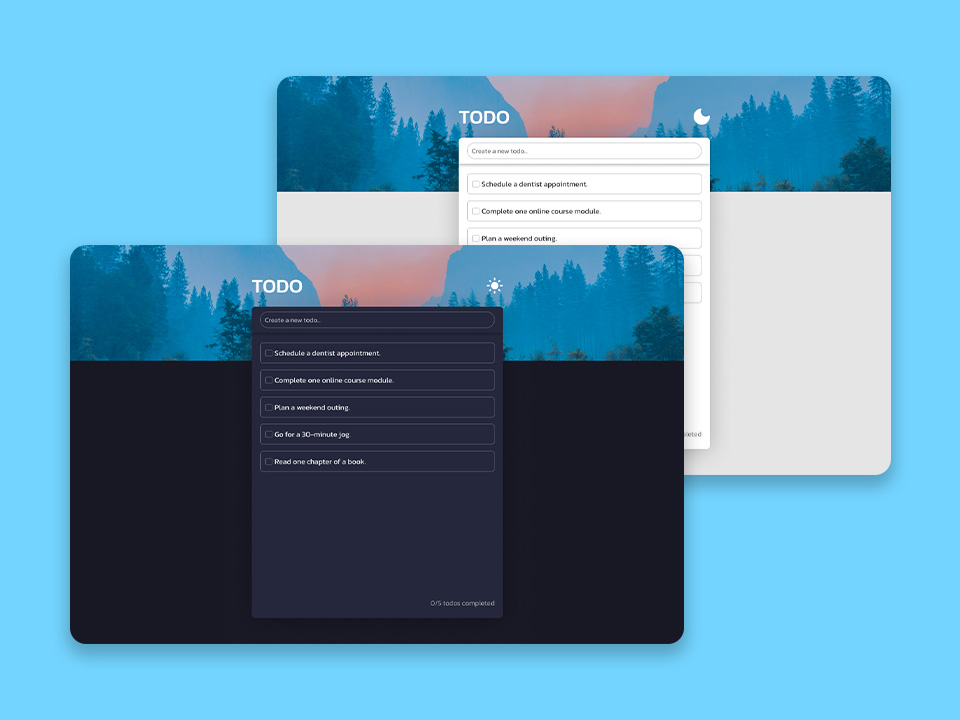
For your first vibe coding session, I recommend starting with the Todo App project. It is Junior-level, covers dark and light theme switching plus drag-and-drop, and has 6 task cards that give you clear milestones. Each card tells you exactly what to build — you bring the prompts, and Merlin brings the code.
Todo App
Other great starting points:
Quiz App
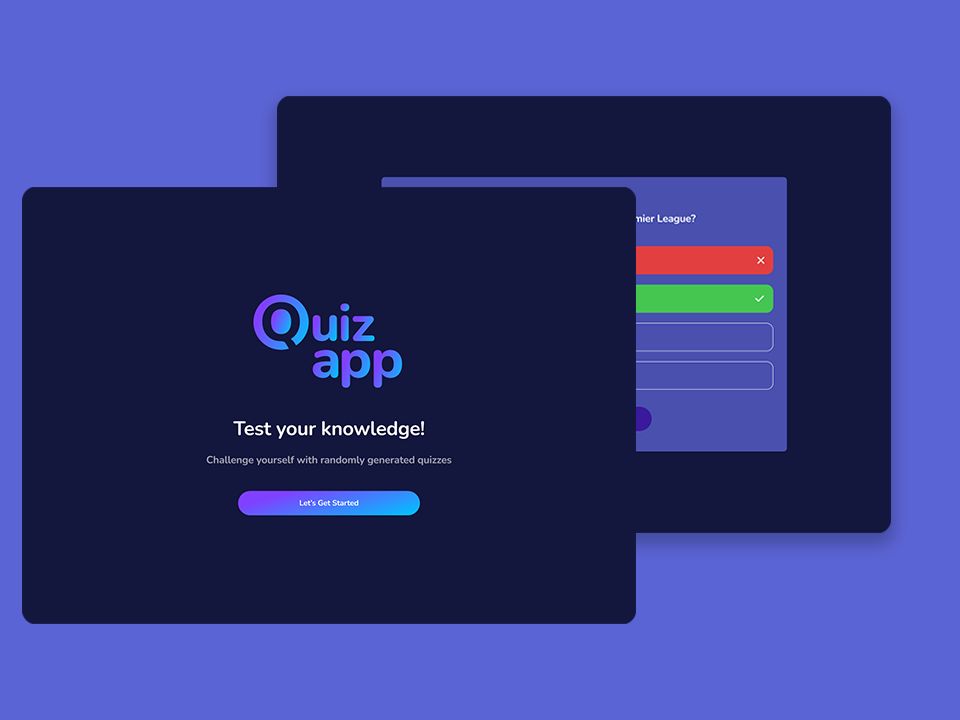
Junior level, scoring logic, timers, state management across 7 task cards.
Pokedex
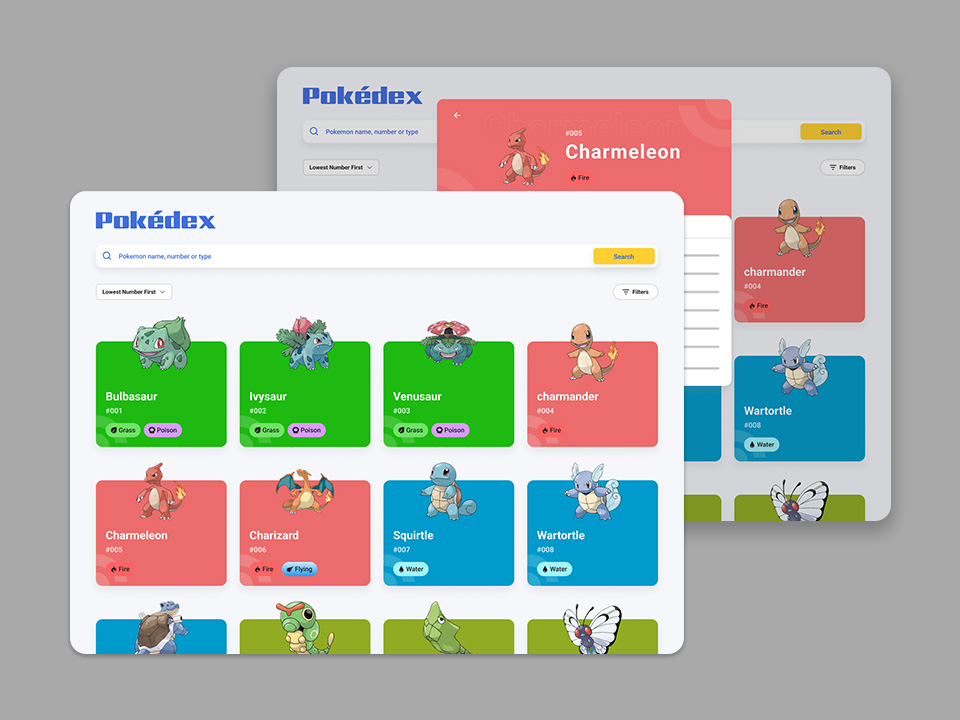
Junior level, API integration, search and filter functionality across 8 task cards.
Music Player
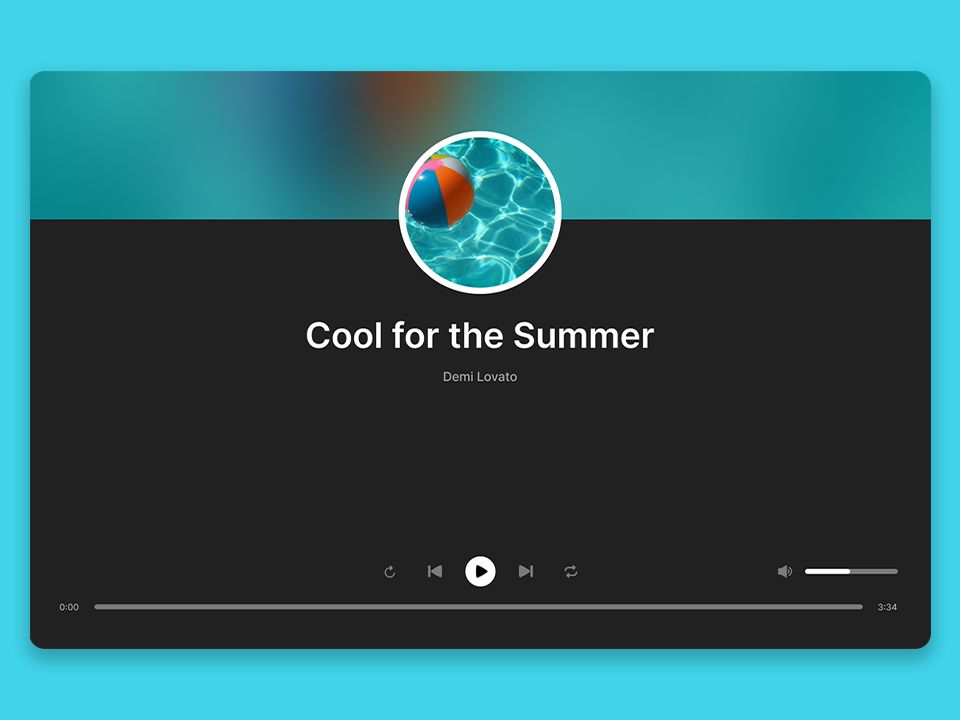
Junior level, audio controls, playlist management across 6 task cards.
Step 2: Open the Browser Editor and Describe What You Want
Open the Todo App project in the browser editor. You will see the code editor on the left and a live preview on the right. Open Merlin AI and describe what you want to build.
Do not write “make me a todo app.” That is too vague. Instead, be specific about the first task card:
“Build a todo list component in React with an input field at the top, a list of todo items below it, and each item should have a checkbox to mark it as complete and a delete button. Use a clean, minimal design with a dark background and light text.”
Merlin generates the code directly in the editor. You see it appear in the code tabs and the live preview updates immediately. No copy-pasting from a chat window. No switching between tools.
Step 3: Review and Understand the Code
This is where vibe coding separates from just copying AI output. Read what Merlin generated. Does the React component use useState correctly? Is the list rendering using .map() with proper keys? Does the delete function filter the array immutably?
If something is unclear, ask Merlin to explain it. “Why did you use filter instead of splice for deleting items?” Merlin will walk you through the reasoning. This is how vibe coding accelerates learning — you get working code and an explanation of why it works.
Step 4: Iterate on Each Task Card
Move through the task cards one at a time. The second card might ask you to add localStorage persistence. Tell Merlin:
“Add localStorage support so the todo list persists across page refreshes. Save the list whenever it changes and load it on initial render.”
The third card might cover dark and light theme toggling. The fourth might introduce drag-and-drop reordering. Each prompt builds on the previous code. Each iteration teaches you something new.
This is the rhythm of vibe coding: describe, generate, review, iterate. The project’s task cards give you structure. Merlin gives you speed. Your review gives you understanding.
Step 5: Share Your Solution
When you finish, share your solution publicly. BigDevSoon lets you publish your completed projects to your profile, building a portfolio of real work. Other developers can see your solutions, and you can see theirs — comparing approaches is one of the fastest ways to improve.
Vibe Coding a Pokedex: A Walkthrough
Let me walk through a more detailed example using the Pokedex project, which involves API integration, search, sorting, and filtering across 8 task cards.
Task 1 — Fetch and display Pokemon. Open the browser editor in React mode and tell Merlin: “Fetch the first 20 Pokemon from the PokeAPI and display them in a responsive card grid. Each card should show the Pokemon’s image, name, and type badges. Add a loading spinner while the data fetches.”
Merlin generates a component with useEffect for the API call, useState for the Pokemon list and loading state, and a CSS grid for the layout. Review the code — notice how it handles the async fetch, how it extracts the data you need from the API response, and how the loading state prevents a flash of empty content.
Task 2 — Add search. “Add a search input above the grid that filters Pokemon by name in real time as the user types. Use debouncing to avoid filtering on every keystroke.”
Now you are learning debouncing — a pattern you will use in every production application. Merlin implements it, and you can see exactly how setTimeout and clearTimeout work together to delay the filter operation.
Task 3 — Add sorting and type filters. Continue through the task cards, each one introducing a new concept. By the time you finish all 8 cards, you have built a complete application with API integration, search, sort, filter, and pagination — all through vibe coding.
Common Mistakes Beginners Make with Vibe Coding
After watching hundreds of developers try vibe coding for the first time, these are the patterns that consistently cause problems.
Accepting Code Without Reading It
The most dangerous mistake. If you do not understand the code, you cannot debug it, maintain it, or build on it. Vibe coding should accelerate your learning, not replace it. When Merlin generates a component, read every line before moving to the next task card.
Prompts That Are Too Vague
“Make me a website” is not a prompt. “Build a quiz component with 4 multiple-choice answers, a score counter in the top right, and a 30-second countdown timer that auto-advances to the next question” is a prompt. Specificity is the single biggest factor in output quality. A project like the Quiz App gives you the exact specs to craft focused prompts from each task card.
Skipping Fundamentals
Vibe coding works best when you already understand the basics. If you do not know what flexbox does, you will not be able to evaluate whether the AI’s layout code is any good. If you are still building foundational skills, combine vibe coding with structured practice — coding challenges with Figma designs will build the visual skills, and practice problems with test cases will sharpen your JavaScript logic. Try the Profile Card challenge as a starting point — it is a focused, single-component build that teaches layout fundamentals.
Not Using the Task Cards
BigDevSoon projects break down into task cards for a reason. Each card is scoped to a specific feature. When you try to vibe code an entire project in one prompt, you get generic, shallow code. When you go card by card, each prompt is focused, and the output is better. Let the structure guide your vibe coding sessions.
When Vibe Coding Works Best
Vibe coding is powerful, but it is not a silver bullet. Understanding where it excels will save you frustration.
UI components and layouts — Cards, forms, navigation, grids. Visual components with established patterns are where vibe coding shines brightest. The 100 daily challenges are perfect for this — each one is a self-contained UI component you can vibe code in a single session. Try building the Contact Form challenge or the Shopping Cart challenge to see this in action.
Prototyping and exploration — Getting an idea from concept to working prototype in minutes. Open the demo editor and describe what you want to see. Iterate until it looks right.
Learning new frameworks — Want to learn Vue but only know React? Open a BigDevSoon project like the Pokedex, switch the editor to Vue mode, and ask Merlin to help you build the same component in a new framework. Comparing the output to what you already know is one of the fastest ways to learn.
Styling and CSS — Describing a visual design in natural language and getting working CSS back is one of the most satisfying uses of vibe coding. Especially when you have a Figma design to reference — tell Merlin what the design looks like, and it generates CSS that matches.
Where vibe coding struggles is with complex business logic, performance-critical code, and security implementations. For those, you need to understand the code deeply enough to write it yourself or at minimum verify every line the AI produces.
Getting Started Today
Here is the practical path to start vibe coding right now.
Try it in the browser first. Open the BigDevSoon demo editor — no signup required. Ask Merlin to build a profile card component. Describe the layout, the colors, the typography. Watch it generate code and see the live preview update. Iterate until it looks the way you want.
Pick a real project. Once the workflow feels natural, pick a Junior-level project to vibe code from start to finish. The Todo App or Quiz App are ideal starting points — small enough to finish in an afternoon, complex enough to teach real patterns.
Use challenges for daily practice. The 100 Days of Code challenges give you a new UI component to build every day. The Profile Card challenge, Contact Form challenge, Shopping Cart challenge — each comes with a Figma design. Vibe code one challenge per day and you will be dramatically better in a month.
Graduate to bigger projects. When you are comfortable, tackle Regular and Senior-level projects:
Code Editor
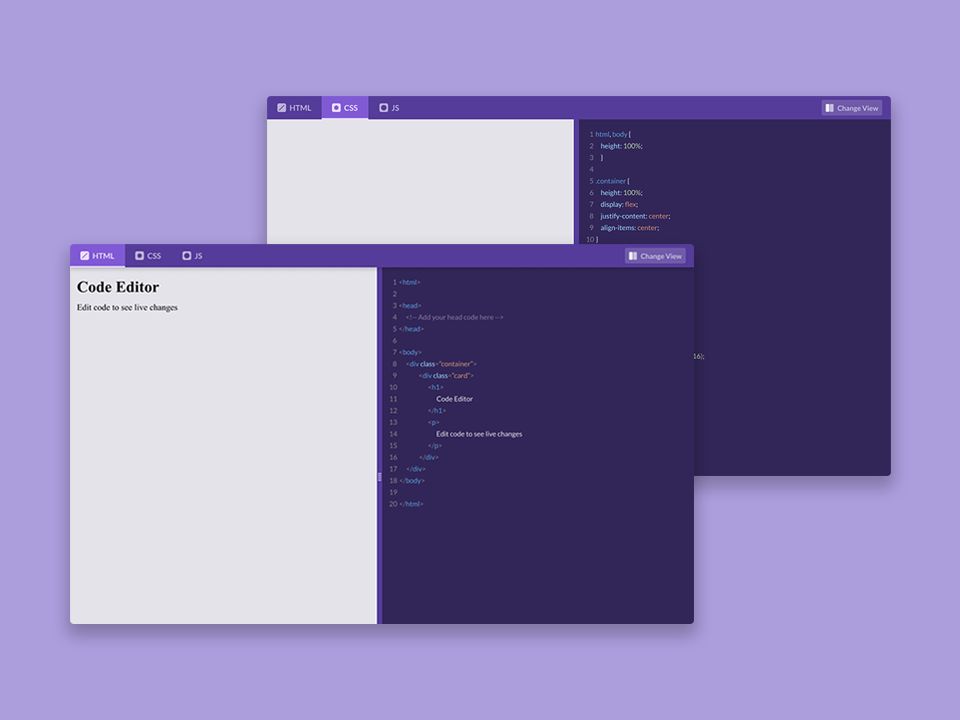
Live preview, syntax highlighting, 10 task cards.
Find Movies
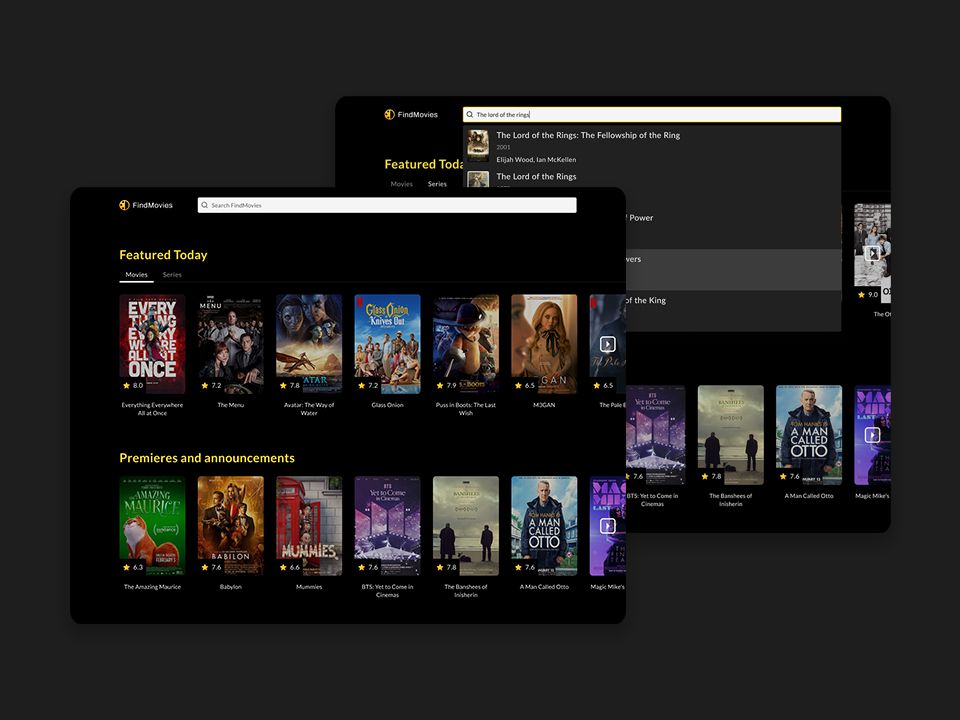
External API, debouncing, infinite scroll.
Dashboard
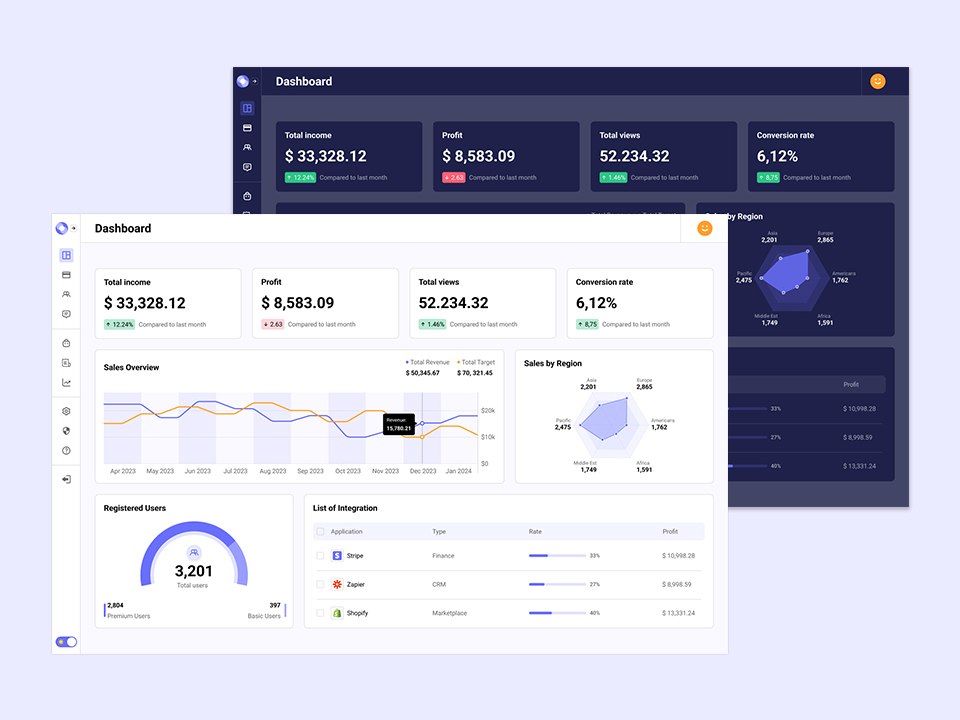
Charts, data visualization, tables across 14 task cards.
For a broader look at the tools landscape, the best coding practice platforms guide compares your options. And if you want free tools to complement your workflow, the free developer tools guide covers everything from design to deployment.
If you want full access to all 21+ projects, 100 challenges, 40+ practice problems, and Merlin AI, use code SPRING50 at checkout for 50% off any plan. See plans.
Conclusion
Vibe coding is not magic, and it is not a shortcut past learning. It is a genuinely new way of building software that combines your judgment with AI speed. The key insight is that vibe coding works best when you have structure — a real project with task cards, a design to match, and an AI assistant that works inside your editor rather than in a separate chat window.
Start with a Todo App. Open the browser editor. Describe what you want to Merlin. Review the code it generates. Iterate until it is right. Move to the next task card. That is the entire tutorial. The rest is practice.
Practice what you just learned in our browser editor with AI assistance.
Try Demo Editor
Creator of BigDevSoon
Full-stack developer and educator passionate about helping developers build real-world skills through hands-on projects. Creator of BigDevSoon, a vibe coding platform with 21 projects, 100 coding challenges, 40+ practice problems, and Merlin AI.


Related Posts

Building Games with AI: How We Shipped a 2D Roguelite in 10 Days
A complete breakdown of our AI-powered indie game dev workflow — Claude Code, Unity MCP, Replicate, ElevenLabs, and more. From zero to Steam-ready in 10 days.

How I Vibe Coded My Vibe Coding Platform
40+ commits, a full platform rewrite, and an AI assistant — all built with Claude Code. Here's the exact workflow.

Autoformat Code With Prettier
Prettier saves a lot of time and automates code formatting. Learn how to integrate with it, ESLint, Husky integration, and recommended setup is also included.